Thursday, March 20, 2014

How can i backup contacts from samsung to pc?


Losing important contacts from samsung phone is really very bad, and for the safety's sake, we'd better backup samsung contacts to computer. So now, I'll guide you how to move contacts from samsung phone to computer with Amacsoft Android Manager.

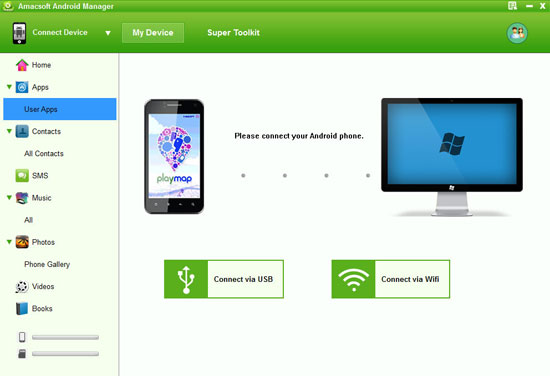
Step 1: Connect Samsung Phone to PC and Run the Problem
Connect your samsung phone to computer via USB cable, then start the Amacsoft Android Manager. The problem will detect your samsung phone automatically and you'll see some detailed info of your samsung phone in an interface.
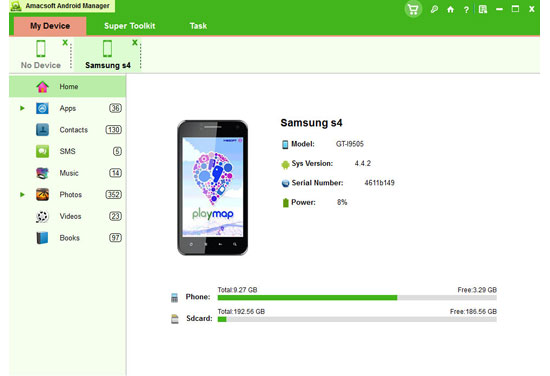
Tips: If this is the first time your samsung phone connecting with the problem, you'll need to enable USB debugging first.  You just need to follow the guide to open the USB debugging and install USB driver on your cell phone. Once the USB debugging finished, you'll see an interface just like above.
Step 2: Select and Check Contacts and Start Export
Now you can click "Contacts" on the top to view all of your samsung phone contacts, select and check those you want to backup, and just click "Backup" to start the export.
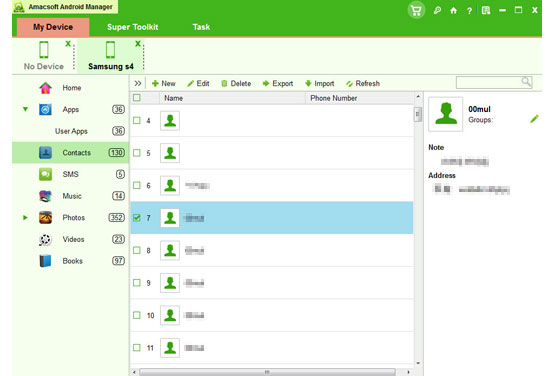
OK! That's all! And the transferred contacts will be saved as CSV format file on your computer, you can open and edit it. You can also use the Amacsoft Android Manager to backup other kind of samsung phone contents to computer in the same way. Try it yourself!

Wednesday, March 5, 2014

How to restore iPhone photos from iTunes


Have you ever deleted some love photos on your iPhone? Do you know we can recover them by extracting iTunes backup file with some iTunes backup extractor?  Everytime we connect iPhone to computer, the iTunes would back up iPhone data automatically as long as you set up, but the iTunes backup file is unreadable and inaccessible. But, we can use Amacsoft iTunes Backup Extractor to recover lost photos.

It's very easy to use this data extractor, but before this don't sync your iPhone to the computer with iTunes, because the backup file will be updated  if you connect your iPhone to computer and sync it with iTunes. It will just  backup the exiting files on your iPhone.

Now let me guide you How to Restore iPhone Photos from iTunes:
Step 1: Select iPhone Backup File
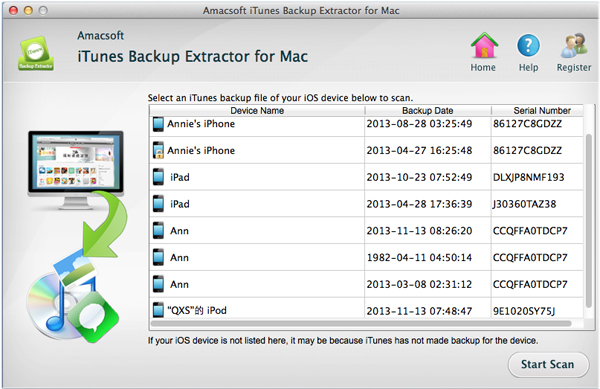
Strat and launch Amacsoft iTunes Backup Extractor on Mac, then it will retrieve the ios devices that have backed on this computer before. We just need to select our iPhone and click "Strar Scan" to let the iTunes backup extractor to scan our iPhone backup file.


Step 2: Preview and Select Photos
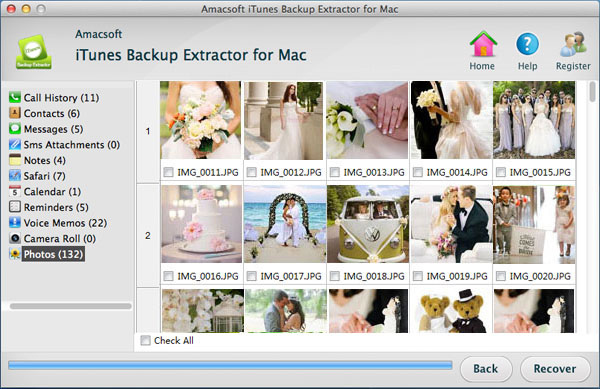
Now we can see all of our backed iPhone contents listed on the left, click "Photos" and "Camerea Roll" icon, then we can preview all the photos that have backed last time. And you just need to select those you want to recover.

Step 3: Start Recover
At last, click "Recover" button on the lower right. There will be a dialog ask you to choose save address, you just need to choose where you want.


OK! That's all! Try it yourself!